Top Questions

Not ready when your hold becomes available? No worries—Libby lets you suspend your hold, opens a new window. This means you keep your place in line, but the book goes to the next person. This is perfect if you’re overwhelmed with current reads or just not in the mood for that genre right now.

🌟 Pro-tip: If you do nothing when your hold becomes available, your hold will be suspended automatically for you once as a courtesy. Holds will lapse if they're suspended for 365 days in a row.

Suspended holds no longer unsuspend automatically, so you’ll need to manually unsuspend them when you’re ready to read.

How do I unsuspend a hold when I’m ready to read?
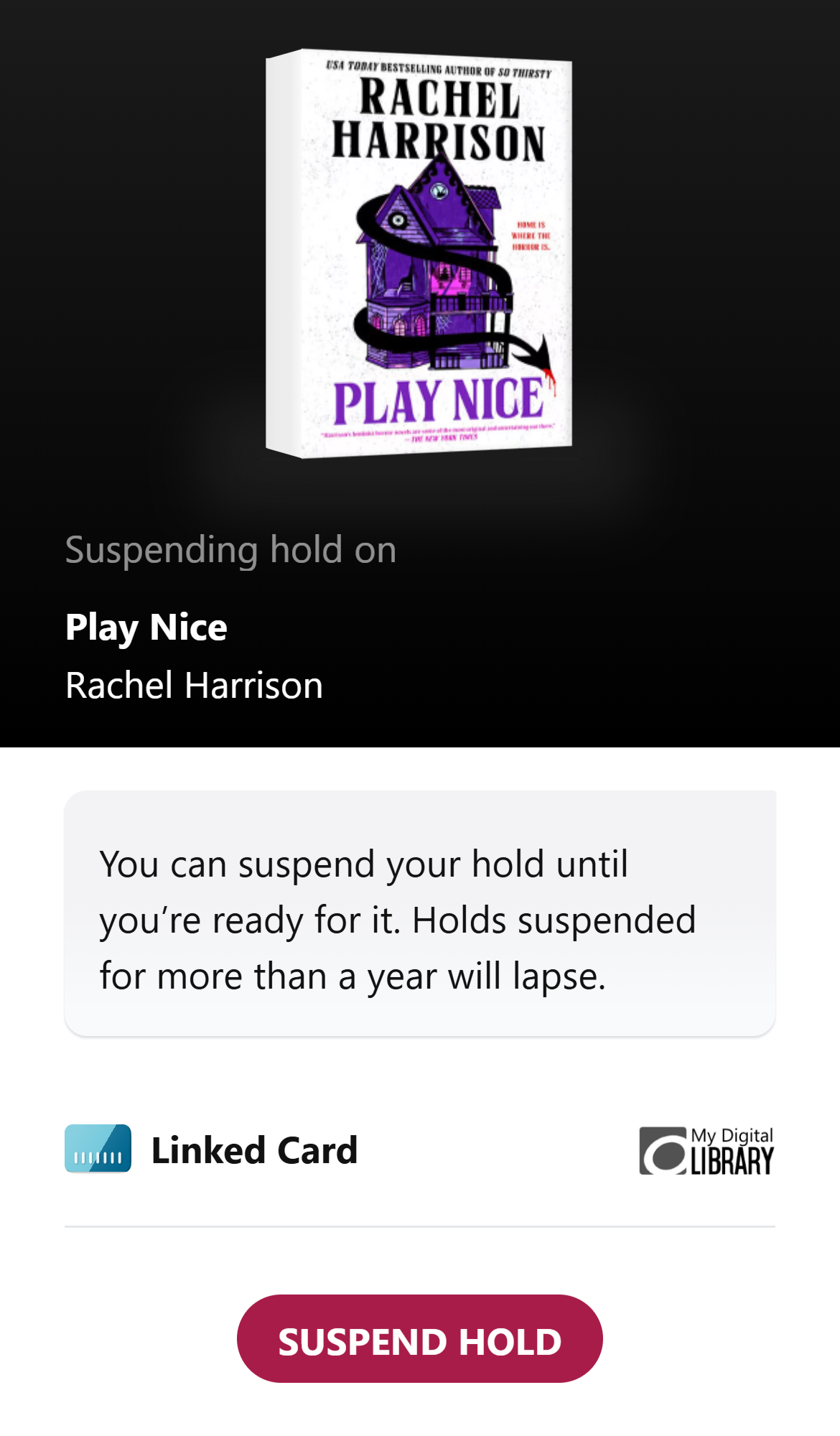
Unsuspend a hold, opens a new window

To do that, go to your Shelf, tap Holds at the top of the screen, tap Unsuspend, then Unsuspend Hold. If you forget to unsuspend a hold for a whole year (365 days), Libby will cancel it for you.

After unsuspending your hold, it will be delivered when you reach the top of the wait list.

Do you still have questions? Here's a guide to Everything you need to know about holds in OverDrive / Libby

AWA is our new shared digital collection with Selwyn Libraries. Christchurch City Customers who are already signed into the Libby App or our classic OverDrive site are all set.  They will see the collection has changed its name to AWA and will enjoy greater choice and access in this shared collection.

If you are signing into the Libby App for the first time follow the prompts to find your library.

A search for Christchurch City Libraries will guide you to our AWA collection. 


Select Christchurch City Libraries from the AWA dropdown and sign in with your Library card and PIN or password

If you are new to our classic OverDrive site click sign in and select the Christchurch City Libraries option from the AWA dropdown to sign in with your Library card and PIN or password

OverDrive (Libby App) Magazines are always available to read and don't count towards your 30 item borrowing limit. 

Reading magazines in the Libby App has got a lot easier. Simply find the issue you want and start reading. You can also Keep for 7 Days and Subscribe to be notified when new issues come out. For more information see Libby Help - Reading Magazines

Unfortunately, our OverDrive site and Catalogue/Library account haven't quite caught up. You may notice magazines you've read in the Libby App are showing up as digital checkouts in your library account and your OverDrive account.

  • You can ignore these checkouts (They'll expire on their due date)
  • You can return them via your OverDrive account

We understand this is confusing and a little frustrating for our customers. OverDrive is considering how it can streamline the magazine reading experience across our different access points and account views.

You can renew items by phone, in the library, or online using your library card and password/PIN. Renewing an item renews it for its original loan period. For pay collections such as bestsellers, CDs, DVDs, and talking books, the original loan charge to borrow the item will apply when renewing. For example, if you borrow a DVD for 7 days and are charged a fee, you need to pay the same fee again to have it renewed.

Items can be renewed once. If other customers are waiting, the item cannot be renewed.

To renew online:

  • Click on Log in/Register (as shown in image above)
  • Enter your library card number and password/PIN to log in (see image below)
  • After logging in your username will appear at top right of the page.
  • Click on your username to the see the My Account menu.
  • Choose Checked Out under the MY BORROWING heading. Select any items you wish to renew and click Renew. A popup message will let you know if your renewal was successful.

Items obtained via interlibrary loan can be renewed in most cases. Please ring the library before your interlibrary loan is due back to arrange this. An interlibrary loan can be renewed only once.

Renewing other items

NewsBank - Access New Zealand has full digital image versions of popular New Zealand Newspapers.
 
Sign in to NewsBank - Access New Zealand with your library card and PIN or Password.
 

1. Scroll down to the blue buttons on the right handside of the screen. Select any of these newspapers. 

2. You will see two results. Select the second one (which says "image" under the format column).

3. Choose the date you want to read, either from the links at the top or by clicking on the calendar.

Your selected issue will load in the full digital image version. Enjoy!

Read the news item about AWA

How can people log into the new service?
The transition will be as seamless as possible for library customers. Our Christchurch City Libraries customers who are already signed into the Libby App or our classic OverDrive site won’t need to do anything. On the 1 July, our Go Live date, they will see the collection has changed its name to AWA.

New Libby customers will follow the prompts to find their library. A search for Christchurch City Libraries will guide them to the AWA collection. Then they select Christchurch City Libraries from the AWA dropdown and sign in with their Library card. New customers to, or existing customers who've signed out of, our classic OverDrive site will also select the Christchurch City Libraries option from the AWA dropdown to sign in with their Library card.

Why won’t Christchurch residents get the same increase in access to content as Selwyn?
Due to the difference in population size the Selwyn Libraries initial base collection will be less than Christchurch’s initial base collection.

Won’t this result in more competition/longer wait time for popular titles?
Current selection and purchasing criteria is based on availability and customer demand; this will not change with the shared collection.

Why are we doing this?
Library users will have more choice due to a richer variety of content, particularly newer and more popular items. The collaboration will help to build relationships between the two organisations, encouraging sharing of ideas and learning for the enhancement of services for all library members. 

How much is this going to cost?
The costs are within existing budgets.

How are you able to provide this service without it costing more?
The new service delivers better value for money through a growth in the user base and in expected collection turnover. 

Is this a permanent arrangement?
This is a trial partnership lasting for a two-year period, from 1 July 2025. Over that timeframe both Selwyn Libraries and Christchurch City Libraries will conduct regular monitoring of data and usage. Parties will meet twice per annum to review the past period and forward plan. Prior to June 2027, we will review the success of the collaboration. 

Why aren’t other Canterbury councils included?
If the digital access partnership is successful, other opportunities to collaborate may be considered, such as programming and events, developing shared staff professional development, or expanding the arrangement to include the other Canterbury councils.

Ask at one of our libraries, phone us or use our Live Online chat service. Please have your library card ready.
Once you have a password or PIN, you can change it in the Personal Information settings once you have logged in.

You can't use special characters when you make your password/PIN. Special characters include the following:
; & " / ` % + ? ' + : $ ^ # * ( ) - = { } [ ] < > . , ~  +

Anyone who lives in the Christchurch City Council area can join Christchurch City Libraries for free. There are also non-city membership options for people living outside the Christchurch area.

To join, you need to bring ID and proof of your address into one of our libraries and speak to a staff member - they will assist you through the process and give you information about library services. If you can't visit the library to change your temporary membership to full membership, contact the library by ringing 941-7923 or emailing library@ccc.govt.nz. This will enable you to borrow items from the library as well as using our online resources.

Please see the Join the Library page for details of membership types, the membership form (including an online option) and conditions of membership.

Join the library to get a library card.

Youth Membership is available to anyone aged under 19. A guarantor (parent or legal guardian) is required for those up to and including 17 years of age. 18-year-olds do not need a guarantor.

For children less than 16 years old, a parent or legal guardian is required to sign the membership card and take responsibility for borrowing.

There is no charge for booking and using a library computer. Pharos is used for managing the booking and for payments for printing and copying.

If a public computer is available, you can walk up and log in using your library card or a visitor slip. If all the computers are in use then you can log into a Pharos Station to reserve the next available computer. You can ask a staff member to help you make a booking.

For library members, there is no limit to the number of sessions you can have if computers remain available. Visitor slips are available to non-members and allow a maximum of 30 minutes a day computer use.

Computer sessions are for a maximum of 60 minutes for library members and 30 minutes for visitors. Some libraries have shorter session time options available. 

When you reserve a computer

  • If you are more than five (5) minutes late for your session the computer becomes available for other customers.
  • When your computer is available, your library card number will be displayed on the screen of that computer.
  • Some locations will also have a queue screen showing you this information. You should check it to see when a computer is ready for you.

Warnings when your time is nearly done

While you are using the public computer, you will be given warnings when you have a short amount of time left:

  • Ten minutes to go
  • Two minutes to go.

If you are a library member, your computer session may automatically extend if no-one else is waiting to use the public computers. If the computers get busy, you will receive a two minute warning before your extended session ends.

Save your work

You must save your work before your session expires, or else it will be lost. Save online or to USB memory drives which are available to purchase at the library.

If you think that you have lost an item that you have borrowed please contact us as soon as you can.

Charges

The charge made for a lost or damaged item is calculated from the item cost which is recorded on the library catalogue record and reflects the cost to the library of replacing or repairing the item. A processing fee of $21 per item is added to the lost item charge. This covers the time it takes to remove the damaged item from the catalogue, to check whether the item is still in print, to place an order, and then when the item arrives, process it to the required level, and update the catalogue; as well as the cost of processing the replacement item - labels, tags, stamp, and plasticating the cover if relevant.

Charges for the repair of damaged items will be set at actual cost recovery.

If you're missing parts (chapters, pages, minutes, etc.) of a downloaded book, audiobook, or magazine, delete and re-download it.

Steps for audiobooks and books

  1. Tap Shelf Shelf, in the navigation footer.
  2. Tap Loans at the top of the screen.
  3. Tap Title status: Borrowed, 100% downloaded button, then Remove Download.
  4. Wait for two minutes, then completely close the app:
    • On Android devices: Open your recently used apps list, find the Libby app, and swipe to close it.
    • On iOS devices: Close the Libby app by swiping up from the app switcher on your iPhone or iPad.
  5. Reopen the app.
  6. Go to your Shelf Shelf, in the navigation footer, then tap Title status: Borrowed, tap to download button next to the title. This will download a fresh copy.

Steps for magazines

It can be hard work if you have to manage other people's library cards as well as your own. You can use CCL Mobile - the Library App to easily borrow and place holds for more than one library account. 

CCL Mobile Apps allows you to add multiple accounts, making it easy to manage individual accounts within the app. Find out how this feature works and get started setting up more than one account on your Android or iOS device.

This is useful if:

  • You are looking after the library cards of your children and borrowing books for them;
  • You borrow books for elderly relatives, or people in your care.

CCL Mobile - the Library App

Download from:

Android devices - Google Play Store

iOs devices - App Store


Multi-Accounts User Experience

The multi-accounts feature makes it easy for you to add multiple accounts to the app, switch between them from within the app, and remove accounts. The user avatar, as well as home screen personalization, provides visual identification for which account is the currently active one.

The home screen is personalized to display the active user’s full name or username (depending on the user’s display preferences).

Users can add and access multiple library cards from the My Library Cards screen. Cards are added by tapping on the ‘Add card’ button and logging in with that account.

The dot indicators correspond with the number of accounts that have been added. In the example on the left, there are two accounts. The card with the label ‘In use’ is the currently active account, and the active account is always in the first position.

An avatar at the top of the screen indicates which account is the currently active one. The avatar can be found on the following screens:

  • My Borrowing
  • My Shelves
  • Unregistering account
  • Bib page

In addition to the user avatar, the bib page displays the active user’s information in the availability panel.

Tapping on the avatar activates the account switcher, which allows the user to switch to a different account. The ‘YOU’ label is displayed for the currently active account.

User information for the active account is also displayed in the Settings screen. Tapping on this takes you to the My Library Cards screen.


How to Add an Account

It is easy to add more than one account. This is done by adding cards from the My Library Cards screen.

  1. On the Home Screen, tap on the library card icon.
  2. From the My Library Cards screen tap ‘Add a card’.
  3. Enter the login credentials for the card you would like to add. Logging in requires:
    • Library barcode (this is the 7- to 14-digit number on the library card) OR username.
    • PIN (personal identification number).
  4. Upon successful login, the library card will be added, but will default to an “inactive” state. If you would like to switch to this account immediately, then tap “Use this card” (see How to Switch an Account).

Some additional notes:

  • There is a maximum limit of 8 cards that can be added.
  • When you log in with a new account from the login screen, that card is automatically added and will become the active account.
  • Added accounts do not persist across multiple devices you might have BiblioApps installed on. Accounts need to be added for each device separately.

How to Switch an Account

The active account can be switched from multiple places in BiblioApps.

Switching accounts from My Library Cards

  1. Swipe to the card that you’d like to activate. (The currently active account is always the first card in the collection of cards).
  2. To activate a card, tap on the Use this card button.
  3. Alternatively, tap on the ellipsis on the card to be activated, then tap on the Use this card button from the bottom sheet.
  4. Upon successful activation, a success message will be presented, and the activated card will take the first position.

Additional notes:

  • A library card is still scannable when in an “inactive” state, so switching the account is not necessary for the purposes of scanning.
  • You can also switch accounts from the Setting screen. Tapping on ‘Manage cards' will take you to the My Library Cards screen.

Switching Accounts Using the Avatar

Tapping on the user avatar brings up the account switcher. The avatar is visible on the following screens:

  • My Borrowing
  • My Shelves
  • Unregistering account
  • Bib page

To switch accounts using the avatar:

  1. Tap on the avatar located at the top right of the screen.
  2. The account switcher will display from the bottom of the screen. Select the account you’d like to activate. (The currently active account is the first one presented, and displays the ‘YOU' label.)
  3. Upon successful activation, a success message will be presented. The avatar will be updated to the newly active account.

How to Remove an Account

Removing accounts from BiblioApps is done from the My Library Cards screen.

  1. On the Home Screen, tap on the library card icon.
  2. Swipe to the card that is to be removed.
  3. Tap on the ellipsis, then tap on the Remove card button.
  4. The user will be asked to confirm removing the card. 
  5. Tapping on Confirm removes the card, and a success message is displayed.

Additional notes:

  • The currently active account cannot be removed. To remove the card for the active account, activate a different card first.
  • Logging out of the app does not remove cards. Cards are removed explicitly by following the steps above. However, deleting the app does remove all the stored accounts. Upon reinstalling the app, cards will need to be added again.
  • Unregistering an account removes the card from the app.

Opting Out of Multi-Accounts

Currently, individuals do not have the option to opt out of multi-accounts. If a user does not want anyone adding or switching to their account, a user can change their PIN. This will mean any other user attempting to switch to the account will need to remove and re-add the account with updated credentials.  Note: adding an account requires both the barcode and the PIN for the account.  A user cannot add an account with only the barcode.

Here is how you can pay outstanding charges on your library account:

At the library

  • You can pay EFTPOS (credit or debit), or Pharos credit at one of our staffed customer service desks.
  • You can pay with EFTPOS (credit or debit), or Pharos credit at one of our self-check kiosks

On the phone

  • You can call 03-941-7923 to pay using a Visa, MasterCard or debit card.
  • You can also pay using Pharos credit over the phone.

Online banking

Online payments should be made to:

  • Account name: Christchurch City Council; bank account number: 02-0800-0044765-03
  • Please add your name (in Particulars) and your library card number H……. (in Reference)

Note: Payments made by internet banking may take a few days to clear on your library account

See also:

Yes, all our libraries have photocopier/scanners except the Mobile library.

All the Pharos printer/copiers do colour and double-sided (duplex) printing and scanning.  Slides (or other types of transparencies) cannot be scanned using our libraries photocopier/scanner. In order to save your scanned file you will need either a USB memory device or an email address to send the scan file to. USB flash drives are available for sale at our libraries.

There is no charge for scanning but if you wish to print a copy you will need a Pharos account to pay for your printing.

See our charges page for copying / printing costs.

Download Printer Copier help [348KB PDF]

Flatbed scanner to digitize your photos or slides

A photo scanner is a device that scans media and creates a high quality digital file. Our Epson Perfection V600 Photo Scanner can scan a variety of physical media formats to digital files. Find out more about accessing a scanner

Please note: all scanning and printing is subject to copyright. It is your responsibility to ensure that your copying is legal.

Due to the large amount of vendors involved standards can vary. Some publishers who have supplied the metadata you use to search is not as precise as needed. Usually you can search again on the eResources site. If you have difficulties please call the library.

Justices of the Peace can witness signatures and documents, certify document copies, hear oaths, declarations, affidavits or affirmations as well as sign citizenship, sponsorship or rates rebates applications. There is no charge. 

Please check on the Royal Federation of NZ Justices' Association website for details about JPs.
Find a Justice of the Peace who can assist online

See our page on Justices of the Peace (JPs) for more information and the weekly schedule of sessions.

Find out more about what you need when visiting the JP.

See our full listing of JP Clinics on the events calendar. 

Note: Hornby Library has moved and you can visit the library at Matatiki Hornby Centre. If you want to visit Citizens Advice Bureau or see a Justice of the Peace, the Hornby Community Care Centre is still open at 8 Goulding Avenue. A Justice of the Peace is available every Monday and Thursday 9.30am-12.30pm. Visit Citizens Advice with your queries: Monday 9am to 5pm, Tuesday 9am to 5pm, Wednesday 9am to 5pm, Thursday 1pm to 5pm, Friday 9am to 5pm. Phone 03 349 5236 or email CAB

Q: What’s a list?

A: A list is a collection of titles related to a specific topic or idea of your choosing. Best Italian Cookbooks10 Books My Daughter Loves Best and Movies That Changed My Life are examples of lists you could create. A good list is a curated topic guide. A list shouldn’t be just a group of titles by an author, since you can do that just by searching, or a list of titles you want to borrow, since you have a For Later shelf for that.

Q: Who can create lists?
 
A: Anyone with a library card can create a list. You don’t have to be a library staff member.
 
Q: How do I create a list?

A: On your My Lists page, click the Add New List button. Once you’ve created the list, you can add titles to it.

Q: Can other people see my lists?

A: Yes. Part of the fun of creating lists is to share your expertise with others. When you create a list, you have the option of making the list public or private. By default, lists are public, and they appear on the Recent Activity page, so others can see them.

Q: Can I change the order of items on a list?

A: Yes. Each title you add to a list appears at the top. You can put the items in any order by dragging and dropping. To move an item, position your pointer over the two headed arrow to the right of the item, hold down your mouse button, and drag up or down. You’ll see a ghost image of the item as it moves. When the item is where you want it, release the mouse button.

Q: How many titles can I put on a list?

A: Up to 100. However, to be truly effective, a list of no more than a dozen is probably a good idea, unless the list is just for your own use.

Q: Why is there a limit?

A: Lists are designed to focus attention on the essential titles in a given subject area, for the benefit of other library members. A list that is too big isn’t helpful. For example, a list of all of Stephen King’s books isn’t much more helpful than a search. But if you’ve read every Stephen King book, a list of what you consider the 10 best would be of great value to someone new to King’s work.

Q: Can I mix books and movies on a list?

A: Yes. A list can contain any combination of titles and formats. You can also add Web sites to a list.

Q: Why would I add a Web page to a list?

A: Add links to Web sites to complement titles on your list. For example, suppose you create a list of books that provide advice to new immigrants. You could add links to Web sites that provide government services and forms, legal advice, or community-based organisations for new immigrants. If you created a reading list for your book club, you could provide links to online resources or reviews of the books you’re planning to read.

Q: What does it mean to annotate a list?

A: Annotations are brief notes attached to items on a list, and are only visible when viewing the list. Unlike comments, they do not appear on a title’s details page. Annotations are especially useful to describe a Web page you’ve added to your list.

Q: How can I see another member’s lists?

A: Any time you see a comment on a title, you’ll see the name of the user who wrote the comment. Click their name to see titles on their shelves. When you’re viewing their shelves, you can see also see their lists by clicking the link near the top of the page. New lists are also shown on the Recent Activity page.

Q: How do I save something from someone’s list to a list of my own?

A: Click the Save link next to the title, then select the list name from the dropdown list.

Q: What’s the difference between lists and shelves?

A: Shelves are a place to gather together all of the titles that you have read, watched or listened to (Completed), are currently borrowing (In Progress) or would like to borrow in the future (For Later). You can add as many items as you want, you can make all or some of them private, and you can filter a shelf using the categories in the left sidebar.

Lists are for more focused collection of items on a particular topic (for example, My Favourite Chicklit of 2011). Lists can also include links to Web pages. You can create as many lists as you want, but you are limited to adding 100 items per list. You can make the list public (viewable by others) or keep it private.

Q: What happens if the library discards an item I’ve put on a list?

A: Any item you add to a list remains there until you remove it, or delete the list, even if your library no longer owns the item.

Q: What does it mean to “follow” someone?
A: When you follow someone, it means you’re interested in what they’re reading, watching or listening to. You can follow someone on a specific topic, such as comedy films, or you can follow all of their interests. When someone you follow rates an item, or adds a comment, summary, similar title or recommended audience to an item they’ve shared, that item appears on your Recently Shared page.

Q: How do I find people to follow?
A: Look for comments by other members on books or movies that you really enjoyed. For example, if you’ve recently borrowed and enjoyed a certain book, see if anyone else added positive comments to it, and follow them.

Q: If I follow someone, do they have to accept me before I get recommendations?
A: No, there is no approval process. The next time the person you’re following rates an item or adds a comment, that item will appear on your Recently Shared page.

Q: What are follow settings?
A: Think of follow settings as advice from your friends on particular subjects. You may have one friend who shares your taste in pop music but not movies, and another with interested in the same political biographies you like. But your taste in movies isn’t shared by either of them. Instead, you have a co-worker who offers good advice on films to see. When you specify your follow settings, you’re saying “I’ll take suggestions from this person on this topic.”

Q: When I follow someone, do they know?
A: No, it’s entirely anonymous. However, this feature may be added in the future. Chances are good that if you like someone’s recommendations, they will like yours.

Q: Why should I bother contributing comments and ratings?

A: Here are a few reasons:

  • Help other members. Every one of us has an area of interest or expertise. Know something about woodworking, genealogy or Italian cooking? Got an opinion on the best books for pre-schoolers, or which Oscar Peterson recordings are the classics? Share it. The content you add guides other members to discover items of interest to them, and helps them determine if you would make a good person to “follow” on a particular subject.
  • Help your library. You know how important your library is to your community. Adding content to the catalogue makes it a more valuable asset to your library.
  • Voice your opinions. Everyone has an opinion about a movie they’ve watched or a book they’ve just read. Share yours. It’s fun.
  • Track your borrowing. Using the Recently Returned feature, you can easily track what you’ve borrowed. Star-rating or commenting on titles can help remind you what you’ve enjoyed when you’re choosing new titles in the future.

Q: How does this help “make a better catalogue”?

A: The information you add to items in the catalogue makes it easier for other members to discover new titles, and helps them determine if these items are of interest.

Q: What’s the difference between a comment and a summary?

A: Think of a comment like a review or an opinion. It’s your two cents worth. A summary is a synopsis, such the plot of a movie, or the contents of a non-fiction book.

Q: What are tags? How are they different from library headings?

A: Tags are keywords or labels. Tags can help you and others find new titles at your library, as well as help you organise items you’ve enjoyed. Library headings classify by subject matter; tags can do that too, but you can also use tags to suggest the emotional qualities of a book or movie. For example, you might describe a movie as comical, dark or sad, or a cookbook as comprehensive or easy-to-use.

Q: Why would I use tags?

Here are a few reasons you’ll find tags helpful:

  • Find new items, and help others do the same. Want to find more books that are inspirational? Search for books others have tagged with that word.
  • Organize your shelves. You can add private tags too, such “gift from mum” or “2009 book club” and then use those tags to filter your shelves.
  • Help your library. You know how important your library is to your community. Adding content to the catalogue makes it a more valuable asset to your library.

Q: What’s a “private” tag?

A: Private tags are for your personal use, and are not visible to other members. You can’t use them to search, but you can use them to filter your shelves. For example, you could tag certain books “gift from mum” or “books I read on vacation”.

Q: What are similar titles?

A: Similar titles provide a way for library users to make connections between items in the catalogue. Now that your kids have read all the Harry Potter books, wouldn’t it be great to find something similar they’d enjoy equally? You can add suggestions to a title you think might interest others, and you can look for similar titles other have attached to a title they enjoyed. It’s all about discovery.

Q: Is there a moderator for comments?

A: No. Comments, summaries and other information you add appear in the library’s catalogue immediately. We assume that all users will exercise good judgment when posting comments. A reporting function enables the greater community to flag content that is objectionable.

Q: Why do you have advisories for titles? Isn’t that censorship?

A: Some members prefer to avoid books and movies that contain certain types of content, especially when borrowing for their children. Advisories offer a way to assist these members in their choices. If you’d prefer to evaluate every book or movie on its merit, you don’t have to add advisories or read them.

Q: If I want to delete or edit comments or other content that I have contributed, can I?

A: Yes, you can edit or delete a comment any time you like.

Q: How long are my comments stored?

A: Content you contribute has no expiry date. It is retained until you choose to delete it.

Q: I’ve seen a comment I find inappropriate. What can I do?

A: Beside each comment is a button that enables you to report inappropriate comments. Before you report something, ensure you’ve read the Terms of Use. There’s a link to it at the bottom of every page.

Q: If I report a comment, does the author of the comment know?

A: No, the author will never know who reported a concern.

Q: What happens to comments when they are “reported”?

A: If a particular comment is reported three times, it will be removed, and the author of the original comment will be notified.

Q: Why do I need to register?

A: Registering allows you create an easy-to-remember username you can use to log in, so you don’t have to type your barcode every time you want to check your account. Registration also allows you to get personalized recommendations, contribute ratings and reviews, and communicate electronically with your library and other users.

Q: What is a username?

A: A username is a name that you can use instead of your barcode to check your account. Think of a username as your library nickname. You can use your real name, but something more anonymous is recommended. Need ideas? Use your initials and your street number (SDK203), your dog’s name, or something about you (Twilightfan), that’s short and easy for you to remember. Remember that the public comments and messages that you post will include your username.

Q: Will my username be seen by others?

A: Yes, if you choose to contribute comments, lists or other content, your username appears beside anything you contribute.

Q: What if my birth date or name is incorrect on the registration form?

A: You should complete the registration online even if the data is incorrect. Please ask a staff member at the circulation desk to update this information the next time you visit the library to ensure the library’s records are accurate.

Q: Why do I have to provide an email address?

A: An email address is optional.  If you ask to have your password/PIN reset, an email with a reset link is sent via email. If you don’t provide an email address and you forget your password/PIN, you’ll need to contact the library to reset or recover it.

Q: Our family has one email address that we all use, but we each have our own library card. Can we all register with the same email address?

A: Yes, multiple library accounts can use the same email address.

Q: Should I use my real name or a username?

A: That’s entirely up to you. Keep in mind that when you add comments or summaries to titles you’ve borrowed, your name will appear next to the comment, and be visible to other members. Also bear in mind that the name you choose may be indexed with your public contributions in search engines such as Google as they crawl the web.

Q: Why can’t my child type a username when registering?

A: For users in the United States, the Children’s Online Privacy Protection Act requires web sites that collect personal information from children to obtain parental consent. For this reason, children under 13 are not allowed to display their real names, nor can they type their own usernames, enter comments, or add other kinds of content that require typing, since these could be used inappropriately. To generate a username, a child can select a combination of colour and animal name.

Q: Are there other restrictions for usernames?

A: Your username must be unique, but otherwise you have a great deal of flexibility when you create a username. The name can be up to 24 characters long, and you can use any combination of letters and numbers, as well as underscores ( _ ). It cannot consist entirely of numbers, or use spaces or other non-alphanumeric characters. The best username is one that is easy for you to remember.

Q: I’ve already memorised my barcode. Can I use my barcode as a username?

A: No, unless it contains both letters and numbers. A username can’t consist entirely of numbers.

Q: Can I use my username to log in?

A: Yes, you can use your username or your library card number. However, a username is easier to remember than a long string of numbers. You can’t use your real name to log in, but you can display your real name on the site if you want to.

Q: Can I change my username?

A: Yes, you can change your username at any time. Keep in mind that any content you added previously will show your new username.

Q: I’m having trouble logging in. What should I do?

A: If you’re logging in for the first time, you’ll need your library card number or barcode, and your password/PIN. The barcode is the number on the back of your library card. If you do not have a password/PIN, contact the Library to set one up.

Q: Why is my account not available?

A: There is a scheduled outage of the library server to allow back-up of library data. This occurs at at 11pm on weeknights and 6pm on weekends and takes up to 30 minutes. During the back-up you can browse the catalogue (BiblioCommons) but you cannot Log In to your account or place holds. If you attempt to Log In during the back-up time an error message will appear stating your password is wrong.

Q: If I’ve been away from my computer, sometimes I have to log in again. Why?

A: The system is designed to log you out automatically if you haven’t done anything for 30 minutes. This is a security feature, to protect your account from unauthorised use in the event that you forget to log out.

Q: I can’t remember my username. What do I do?

A: Log in with your library card number or barcode. When you’ve logged in successfully, click the Settings link at the top of any page.

Q: I can’t remember my password/PIN?  What do I do?

A: There’s a Forgot your Password? link on the Login page. Enter either your username or your library card number (barcode), and then click Send. You’ll get an email with instructions on how to change your password/PIN. To use this feature, you need to have already registered. If you haven’t already registered, contact your library to reset your password/PIN.

Q: Which Web browsers can I use?

Desktop

Browser Supported versions
Apple Safari Supported versions of Safari on maintained versions of Apple macOS
Google Chrome Latest two versions of Chrome on maintained versions of Microsoft Windows and Apple macOS
Mozilla Firefox Latest two versions of Firefox on maintained versions of Microsoft Windows and Apple macOS
Microsoft Edge Latest two versions of Edge on maintained versions of Microsoft Windows.

Mobile

Operating system Supported versions
Apple iOS
  • Supported versions of Safari on maintained versions of iOS.
  • Most recent version of Chrome on maintained versions of iOS
Android
  • Most recent version of Firefox on maintained versions of Android
  • Most recent version of Chrome on maintained versions of Android.

Supported operating system versions:

No Longer Supported

Browsers

  • All versions of Internet Explorer on all versions of Microsoft Windows, including applications that rely on the legacy MS TRIDENT rendering engine.
  • Legacy releases of Microsoft Edge on all versions of Microsoft Windows.

Devices and Operating Systems

  • All browsers on Microsoft Windows Phone
  • All browsers on BlackBerry OS or BlackBerry 10

Q: I use Internet Explorer  version 8.0, 9.0 or 10. Should I upgrade?

A: Yes. Internet Explorer 8.0 (IE8) is an old browser that does not display modern web sites properly. You may find when using this site that certain features don’t work correctly. You’ll have a better online experience on all websites if you upgrade to a more modern browser.

What browser should you use?

For PCs, the browsers that provide the best performance and user experience are Mozilla Firefox, the most recent version of Internet Explorer, Microsoft Edge, or Google Chrome, opens a new window. Your choice of browser upgrade may be limited by your operating system.

What happens to your old browser?

If you’re upgrading from one version of Internet Explorer to another, the older version will be deleted automatically. If you’re installing a different browser, you can have both on the same computer.

What happens to Favorites?

If you are upgrading from Internet Explorer 8.0 to another version of Internet Explorer, your Favorites will be retained.

If you’re switching to Firefox, you can import your Favorites:

  1. On the Firefox File menu, click Import. Microsoft Internet Explorer should appear as a choice.
  2. Click Next, and then follow the on-screen instructions. Firefox refers to your collection of saved web site links as Bookmarks.

In combination with your user name or library card number (barcode), your library gives you a password/PIN, to provide you with secure access to your library account. The password/PIN is provided by your library, but you can (and should) change it.

If you forget your password, use this process to reset it.

► To reset your password

  1. On the Login page, click the Forgot your Password link.
  2. On the Forgot your Password page, enter your barcode.
  3. Click Send.
  4. In a few seconds, an email will be sent to the email address associated with your account.
  5. Open the email and click the link to launch your browser.
  6. On the Reset Password page, enter your barcode. Enter a new password/PIN and then confirm it by typing it again.
  7. Click Save.

Use the new password/PIN the next time you log in.

Note: If you don’t know your library barcode number, contact your library.

You can't use special characters when you make your password/PIN. Special characters include the following:
; & " / ` % + ? ' + : $ ^ # * ( ) - = { } [ ] < > . , ~  +

Along with your barcode, you enter your password/PIN to log in to your account. It was provided to you when you got your library card. To maintain security, it’s a good idea to change your PIN from the default that was issued to you.

► To change your password/PIN

  1. If you have not already done so, log in to your account.
  2. Click the My Settings link under the Log in /My CCL link top right of the menu.
  3. In the Password field, enter your Current Password
  4. In the New Password field, enter the new password/PIN you want to use.
  5. In the Confirm New Password field, enter the new password/PIN again.
  6. Click the Save Password button.

You can't use special characters when you make your password/PIN. Special characters include the following:
; & " / ` % + ? ' + : $ ^ # * ( ) - = { } [ ] < > . , ~  +

When you ignore another user, you do not see comments on bibliographic records, and they cannot send you a message. Ignoring a user causes all of their comments to be screened so that they do not appear when you browse the library’s catalog.

Why Ignore Other Users?

This site provides all library members and staff with a forum to express opinions about books, DVDs and CDs they like or dislike. People’s tastes differ; there may be some opinions you would rather not read.

When you ignore another user, that user isn’t notified, nor is their ignored status viewable by anyone else. Adding someone to your Ignored Users list doesn’t affect their standing with other users at your library.

Ignoring doesn’t have to be forever. Any users you have chosen to block from your view are listed on your Ignored Users page, and can be easily removed from the list.

► To ignore a user

  1. When you see a comment whose author you would like to ignore, click the arrow next to their name.
  2. On the menu, click Ignore.
  3. A message appears that the user has been added to your Ignored Users list.

► To ignore a user after viewing their collection

  1. At the top of the user’s collection page, click the Ignore link.
  2. A message appears that the user has been added to your Ignored Users list.

► To stop ignoring a user

  1. On the My Networks menu, click Ignored Users.
  2. Find the user’s name on your Ignored Users page.
  3. Click the checkbox next to the user’s name, and then click the Unblock User button.

The content on your Ignored Users page is visible only to you. Your library will not share this information with anyone, under any circumstances. Please consult our Privacy Statement to learn more about how your library protects your private information.

When you follow someone, it means you’re interested in what they’re reading, watching or listening to. You can follow someone on a specific topic, such as comedy films, or you can follow all of their interests. When someone you follow rates, comments on or adds other content to an item that matches your criteria, that item will automatically appear on your Recently Shared page.

► To follow someone

When you see a rating or review that you agree with or enjoy, do this:

  1. Click the arrow next to their name.
  2. On the dropdown menu, click Follow.
  3. In the Follow popup, do one of the following:
    1. Click the first Follow button to follow this person for everything they read, watch or listen to.
    2. Choose specific categories. The number of categories you’ll see depend on whether you began from a specific title in the catalogue, or from another page, such as Recent Activity. When you’ve chosen your categories, click the second Follow button.

Once you begin following another library member, go to the I’m Following page to fine-tune their follow criteria, or remove them from your networks altogether. You will find titles from people you follow on the Recently Shared page, in the Explore section.


list is a collection of titles related to a specific topic or idea of your choosing. You can share it with other library members or keep it private for your own use.

When you're finished editing your list, you can choose who will see it.

Each time you contribute information such as ratings, tags, comments or summaries, you receive community credits. Community credits are a way you can keep track of your contributions to the library’s catalogue, and to the wider community of library users.

To see the details of how you earned your credits, click My Account, and then click Community Credits.

The simplest way to start earning community credits is to add titles to your shelves: each star ratingtag or other comment that you add earns one credit. When you create a list of at least five titles, you earn 5 credits.

Your list of community credits is private. Please consult our Privacy Statement to learn more about how your library protects your private information.
Note: Not every library uses community credits. If you don’t see Community Credits on your menu, your library has not enabled this feature.

Tags help other members to find what they’re looking for, and enable you to organise your shelves in a meaningful way. Tags work alongside traditional indexing systems such as author, title and subject to enrich the library’s catalogue.

Tip: Tags are shown on a title’s details page. You can search for other titles with the same tag by clicking the tag word. You can also select Tags from the search dropdown list and enter words in the search box to find titles with the same tag.

► To add tags from your shelves (For Later, Completed, or In Progress)

Click on Add Tags

Fill out the information you want to add. You can add more than one, separate with commas. 

Select Done.

When you’re searching for books at your library, it’s easy to find related titles by browsing the shelves. This is particularly useful when you’re looking for books on the same topic that are shelved together.

When you’re looking at the library catalogue online, you can view five related titles under the Related titles heading on the record page you’re viewing.

► To view the Related titles

  1. Open the title, if you’re not already viewing the title’s details.
  2. Scroll down the page to  Explore further - Related titles

The Recently Shared page displays a continuous “feed” of titles from people you follow. 

To follow someone, you select a user, and then specify subjects on which you think they have some expertise, such as humour, cooking, historical fiction, and so on. You can choose categories, or follow the user on all subjects. When that user rates a title, adds a comment, or contributes any other type of content to that title — a video, similar title, summary, age rating, and so on — the title will appear on your Recently Shared page.

For example, suppose you are looking for quality books for pre-schoolers and are following Jane C for juvenile fiction. Jane adds Eric Carle’s The Very Hungry Caterpillar to her shelves and gives it a 5-star rating. This book would appear on your Recently Shared page.

The feed doesn’t just contain highly rated items. Sometimes, knowing that someone you trust dislikes something is as useful as knowing that they really enjoyed it.

The Fees page displays a list of messages from your library, including library charges.

A coloured indicator at the top of the Fees page displays any money owed.

The default sort order is by date. You can also sort the list by amount or title.

Find out how to pay.

Note: The content on the Fees page is visible only to you. Please consult our Privacy Statement to learn more about how your library protects your private information. There’s a link to the Privacy Policy at the bottom of every page.

You place holds on items you want to borrow from search results, or from the sidebar on the left of a title’s details page. If you want to pick up the item at a specific location, you can see which branches currently have the item, as well as the circulation status of all available copies. There is a limit of 20 holds on your card. 

► To place a hold from search results

  1. Enter some keywords and run your search.
  2. Find the title you want.
  3. Titles with at least one copy in the library show Available. To see the current status of all copies of the item, click the availability details link.
  4. Click the Place a Hold link.
  5. In the Place a Hold popup, select the branch where you’d like to pick up the title. The default is the location is your home branch, or the one you specified on your Preferences page as your preferred location. (If your library has only one location, you won’t see this option.)
  6. Click the Confirm button.

Your requested title will now appear on your Holds page.

► To place a hold from a title’s details page

  1. Find the title you’d like to place a hold on by searching or browsing the catalogue. Go to its details page by clicking its title.
  2. The total number of copies and number currently available is shown. To see the location and current status of each available copy of a title, click the View Availability Details link.
  3. On the left sidebar of the title’s details page, click the Place a Hold button.
  4. Select the branch where you’d like to pick up the title. The default is the location is your home branch, or the one you specified on your Preferences page as your preferred location. (If your library has only one location, you won’t see this option.)
  5. Click the Confirm button.

Your requested title will now appear on your Holds page.

Notes: If you need an item in a hurry, use the On the shelves now at dropdown list to view locations that have copies available.

Some items, such as reference book or documents on microfiche, cannot be placed on hold. Inquire about these at the Reference Desk at your branch.

Some popular titles may not always be available as quickly as you’d like. Discover new works by exploring the recommendations, comments and tags submitted by other library members.

From the Holds page, you’re able to keep track of the titles you’ve requested, and where and when they will be available for pickup. By default, items on the page are sorted by hold position, with items ready for pickup first. If you prefer, you can sort the page by status, title, author or format.

You can also cancel and suspend your hold requests. To change the status of a request, use the checkbox next to each title, and then click the appropriate button. Cancelled and suspended holds are each shown on separate pages. You can activate suspended holds from the Suspended page.

The status of items ready for pickup are shown in green. Items not yet available are shown in red.

Note: Use this page to manage holds. To place a hold, do a search, or view a title’s details page. See below.

The content on the Holds page is visible only to you. Please consult our Privacy Statement to learn more about how your private information is protected.

Can’t remember your user name? A user name contains only letters, numbers and underscores. If that doesn’t help you remember it, log in using your library card number. Your username is for your convenience. You can always log in with your library card number.

If you can’t remember your Password/PIN, you can reset it. Click the Forgot your Password? link. You’ll get an email with a link in it that will enable you to create a new password. Your password/PIN can be between 4 and 25 characters in length.

You can't use special characters when you make your password/PIN. Special characters include the following:
; & " / ` % + ? ' + : $ ^ # * ( ) - = { } [ ] < > . , ~  +

Still can’t log in? Contact your library.


An email address is optional. It will be used if you forget your PIN/password and request a reset. Your library may also use your email address to send you notifications of items ready for pickup, coming due or overdue. For additional information about registering and logging in, please see the Settings FAQs, opens a new window

You can use the site to search the catalogue and look for recently acquired and reviewed items. To place a hold, check your account, or use some of the site’s interactive features, you need to first log in.

Logging in requires two things:

  • your library card number, or barcode. It is the 7- to 14-digit number on your card.
  • your PIN (personal identification number) or password. This will be between four and 12 digits.

Once you have registered with the site you can create a username and use that to log in, rather than your library card number. You may find it easier to remember, especially if you need to access your account when you don’t have your card with you.

Yes, you are welcome to suggest a title you would like to see through our Suggest an item form.

In Libby you can find titles that are not available in the collection and use a Notify Me smart tag to express your interest.

If a title you've tagged with your Notify Me smart tag is purchased, you'll get a notification and have the option to borrow it or place it on hold right away.

Not all titles are available through our eBook and eAudiobook collections, and not all titles that are recommended or tagged with Notify Me will be added.

Yes, all our libraries have printing, photocopying and scanning except the Mobile libraries.

All the Pharos printer/copiers do colour and double-sided (duplex) printing and scanning. The public printer-copier touch panel can be adjusted to tilt forward or back depending on your requirements. The public printer-copier has a Scan to USB function.

You will need a Pharos account to login to access the print, copy or scan functions. You will need credit on your Pharos account before you can copy or release your printing. You can top up at a customer service desk or self-service kiosk at the library

Printing from your own device is available via Mobile Printing. Read the Mobile Printing FAQ.

See our charges page for copying / printing costs. Scanning to Email or USB is free.

Please note: all copying and printing is subject to copyright. It is your responsibility to ensure that your copying is legal.

Download Printer Copier help [348KB PDF]

To access your files on your USB flash drive or memory card

There are USB ports and a memory card port on the side of the public computer monitor.

Once you insert your drive or card File Explorer will open automatically or you can open File Explorer from the desktop menu.

Drive F: is the default drive letter your flash drive or memory card will usually be assigned.  

To safely remove your USB flash drive

  • In the bottom right corner of the screen click on the USB Flash drive icon
  • Select Eject (name of your device) 


  • A message appears when it is safe to remove your device.

* If you don't have one you can purchase a USB flash drive at our libraries, just ask at the information desk.

Simply ask at your local library or phone the library. Interloans will be renewed once only for an additional 3 weeks from the original due date. Interloans staff will contact you if the lending library is unable to renew the item for any reason and then the item must be returned as soon as possible, i.e. the renewal is not granted. Interloans may also be recalled by the lending library. If an interloan is overdue when renewed the renewal time will be shortened.

Check to see whether we hold the item by searching our catalogue. If we have the item but it's out, you can place a hold.

If we do not have the item, you can request we buy it by filling in our suggestion form or phoning the library on (03) 941 7923.

Note: There is a limit of 20 holds on your card, so if you make recommendations and have 20 holds, we won't be able to place a hold.

Occasionally due to our system update timing, your suggested title may appear on our catalogue before the hold shows on your account.

Interlibrary loan (often referred to as interloan) is a co-operative scheme whereby libraries throughout New Zealand lend items to each other. We rely also on the cooperation of our own members to borrow and return items in a timely fashion in order for Christchurch City Libraries to continue to be part of this scheme.
Read the full Interlibrary Loan Policy.

Use this form to request an interloan.

You can choose a new Password / PIN when you visit the library or by phoning us.
You can also change your Password / PIN when you access your account information through our website.

Yes. You can pick up someone else's items and collect their holds if you present their library card.

You may also pick up someone's holds on their behalf by presenting the notification letter for those items. This notice is sent via email.

Charges apply when you borrow some items.

See the link below for information about library Charges.

If the library does not hold an item there are two ways we could obtain it for you.

If the item is held by another New Zealand library we can borrow it for you through the library interloan service. The interloan charge is non-refundable once your order has been placed. This charge is payable on your next visit to the library. It generally takes about two weeks to receive your interloan, although this can vary according to availability.

The other alternative is that we may be able to purchase the item for the libraries' collection. The length of time it takes to receive an item varies, however it does take considerably longer than an interloan request. We shall let you know if we are not going to buy the item. If we place an order for the item we'll place a hold on it for you. A hold charge will apply when you collect the item.

See how do I make a request for the form to request an item for purchase or interloan.

See our current charges.

Yes. Bestsellers can be renewed.

The original loan charge to borrow the Bestseller will be applied when you renew it.

Bestsellers can be renewed once.

Please follow the link below to view our current charges.

Charges and Fees