Facilities and Equipment FAQs

  • General Questions

    • You should be automatically directed to our WiFi welcome page.
    • You need to accept our terms and conditions before you proceed with using this service.

    Troubleshooting

    • Open a web browser such as Chrome, Edge, Firefox or Safari
    • Search or enter a website address that is not already displaying in the web browser, eg http://1.1.1.1
    • This should force the web browser to redirect to the Christchurch City Libraries WiFi welcome page
    The children’s slide on Hapori | Community, Level 1, Tūranga closed in 2021 due to the following safety concerns:

    • the potential for children to climb onto the perimeter ledge, fall down the stairs or fall from the top of the structure onto the slide below.
    • the slide curve was too tight at the turn and there had been several injuries.
    • the runout from the slide required a 2m fall zone clear of other users, and this was not achievable in the space provided.

    A safety fence was installed around the perimeter of the top of the structure, the run-out zone made safer, and by the end of 2022 the slide had reopened.

    In early 2023, the library received expert advice from playground specialists that the structure was still unsafe. Specifically, the "fall from height" risk above the stairs and above the slide were deemed unacceptable. Additionally, the plastic surface of the slide had worn down to a point where a small area of the fibreglass substructure was beginning to be exposed.

    There were 30 injuries, mostly minor injuries such as cuts/bruises, on the slide and cave structure between 2018 and 2023.

    What will happen next

    We’ll be looking at options for improvements over the coming months while taking safety concerns into account. Options for improvements include repurposing, adapting or removing and replacing the existing structure. The slide is concreted into the surrounding wooden structure and will be expensive to remove. We’ll be looking at options over the coming months.

    The slide itself is a standard New Zealand playground item. The large structure the slide sits within was designed by the building’s architects, and was designed to meet the NZ/AU building standards – which is different to the playground standards. Council playgrounds adhere to playground equipment and surfacing NZS 5828:2015 standard.

    You must be 12 or older to use the VR equipment at the library. This is in line with the manufacturer's recommendations, 

    To use VR in a managed/staffed programme, you must be 10 or older and must have an adult / caregiver with you.

    You are welcome to bring your dog into the library if it is certified as a “disability assist dog” by an approved organisation. If your dog does not have this certification, it may not come with you to the library. You can share the certification with us and we’ll update your library membership to show you are entitled to have a dog with you at the library.

    Disability assist dogs must be certified by one of the following organisations:

    • Assistance Dogs New Zealand Trust
    • Hearing Dogs for Deaf People New Zealand
    • K9 Medical Detection New Zealand
    • Mobility Assistance Dogs Trust
    • New Zealand Epilepsy Assist Dogs Trust
    • Pawsible Service Dogs
    • Perfect Partners Assistance Dogs Trust
    • Royal New Zealand Foundation of the Blind Incorporated.

    Each organisation issues a coat for the dog to wear with the organisation’s name on it, and some form of identification for the handler.  Please note, only dogs certified by K9 Search Medical Detention before 20/12/2024 have public access rights.

    Read more: Disability assist dogs and rights of access Te Kāhui Tika Tangata Human Rights Commission.

    Yes. We have a number of apps and tools available for library users. The CCL Mobile - Bibliocommons app allows you to easily search for titles in the catalogue, put on holds, and manage your account. There are also apps for some of our popular eResources

    Our kiosks are available in English. Some kiosks at TūrangaLinwood Library at Eastgate, and New Brighton Library are set to te reo Māori
    During Te Wiki o te Reo Māori, all māu e tuku (self issue machines) will show in Māori as their default. 

    You can also issue your own library items from our self-issue kiosks in the following languages:

    • Arabic
    • Burmese
    • Croatian
    • Dutch
    • Filipino
    • French
    • German
    • Greek
    • Hebrew
    • Hindi
    • Indonesian
    • Irish Gaelic
    • Italian
    • Japanese
    • Korean
    • Macedonian
    • Mandarin (Simplified Chinese)
    • Mandarin (Traditional Chinese)
    • Persian
    • Pirate
    • Polish 
    • Portuguese
    • Punjabi
    • Russian
    • Samoan
    • Sinhalese
    • Spanish
    • Tamil
    • Thai
    • Ukrainian
    • Vietnamese

    Receipts (either printed or email) will be issued in the language selected at the self-issue kiosk at the time items are borrowed. For example, if the self-issue kiosk is set to te reo Māori the printed receipt or email (if selected) will also be in te reo Māori.

    The Smokefree and Vapefree Public Places Policy applies to libraries (and other places).
    The Council’s smokefree and vapefree policy applies to primary entrances and exits of Council buildings and facilities (e.g. libraries, recreation and sports centres) where people are asked not to smoke or vape.

    Read the Smokefree and Vapefree Public Places Policy for more information.

    Information current as at 22 July 2021.

    • Akaroa Library - No
    • Aranui Library - No
    • Diamond Harbour Library - No
    • Fendalton Library - Yes
    • Linwood Library - No, but there are wheelchairs available for Eastgate customers which can be used in the library
    • Little River Library - No
    • Lyttelton Library - No
    • Matatiki Hornby Centre - Yes
    • Matuku Takotako: Sumner Centre - No
    • New Brighton Library - Yes
    • Ōrauwhata: Bishopdale Library and Community Centre - Yes
    • Papanui Library - No
    • Parklands Library - No
    • Redwood Library - No
    • Shirley Library and Service Centre - Yes
    • South Christchurch Library - Yes
    • Spreydon Library - Yes
    • Te Hāpua: Halswell Centre - Yes
    • Tūranga - Yes, two
    • Upper Riccarton Community and School Library - No

    NVDA – Non Visual Desktop Access. Free, open-source screen reader installed on our public computers. https://www.nvaccess.org/

    Information for blind and visually impaired customers using our free internet computers

    BYO Headphones

    The internal speaker on our free internet computers are disabled therefore bring your own headphones that use a standard headphone jack.

    To find the headphone jack run your hand down the left side of the computer screen. The headphone jack has a round finger size hole.

    Use Narrator at the login screen

    NVDA is not available until you have logged into the free internet computer. You can use Microsoft Narrator, the built-in Windows screen reader, at the login screen instead.

    Narrator instructions     

    • Keyboard shortcut Windows Control Enter turns Narrator on
    • Narrator will switch off when you log into the desktop, you will need to press Windows Control Enter again to enable Narrator again

    Starting NVDA

    Use keyboard shortcut Windows S to Windows Search for the NVDA application

    • Type nvda
    • When NVDA is selected press enter to run it
    • To quit Narrator use keyboard shortcut Windows Control Enter
    • To quit NVDA use the keyboard shortcut Insert Q

    Some websites may have their own buttons for re-sizing text, often showing the letter A at two sizes, but if not most web browsers will increase the text size if you click Ctrl & + together, and Ctrl & - will make it smaller.

    • This will increase the text size in most web sites and in some cases the images also.
    • Resizing the text may effect how the page prints - use print preview to check and correct.

    Older browsers

    1. In Internet Explorer go to the View menu
    2. Choose Text Size > Larger or Largest

    In MS Office applications

    To view your text larger without effecting its real or printable size follow these steps:

    1. Go to the View menu
    2. Select Zoom > 200% or set your zoom size to your preference

    Yes we do. See the websites and games for fun and learning that we link to on the kids' computers at your local library. Children's computers are available at all of our branches except Diamond Harbour, Little River, Mobile Library, and Parklands.

    Yes we do.

    Find our more on our Games and Gaming page.

    To change the language setting follow these steps.
    Note: you need to have the cursor in a location you can type in before you can set the language settings.

    1. Click on ENG, this is located near the bottom right of the screen on the task bar, next to the time and date, and start typing. Some languages may require you to click on additional settings once you have changed the keyboard language.

    See Also

    Accessibility

    Accessibility, when referring to the design of software, refers to the practice of designing software so that people of all abilities and disabilities have equal access to information and functionality. Some software is specifically designed to make other software accessible to users who, for example, are sight-impaired for example. The following accessibility tools are available on our computers:

    Dyslexia

    The OpenDyslexic font is installed on our public computers. On a Free Internet public computer you can create or edit a document and use OpenDyslexic from the available fonts menu.

    The OpenDyslexic Chrome extension is installed on our public computers. To activate in the Chrome web browser select the extensions tool bar icon (it looks like a jigsaw puzzle on the right-side of the address bar), then select OpenDyslexic.

    Magnifier

    Magnifier is included as part of Windows. Magnifier splits the window you are viewing into two; the top half of the window displays the selected text in a larger font.

    • To use magnifier, go to Start > All Programs > Accessories > Ease of Access > Magnifier.
    • To quit, click Exit or press Alt-X.

    Is screen magnification software installed on the public PCs?

    Yes. Magnifying Glass software is installed to assist people with visual disabilities.

    • To use it go to Start > All Programs > Accessories > Ease of Access > Magnifying Glass.
    • To exit from, or restart Magnifying Glass use the keyboard shortcut Ctrl-ALT-G.

    To change options such as the zoom level and size, right-click the Magnifying Glass icon in the system tray in the bottom right corner of your screen.

    Help is available from Microsoft.

    Narrator

    Narrator is a screen reader utility included in Microsoft Windows. The visually impaired can use it to read dialogue boxes and window controls.

    To use Narrator, go to Start > Programs > Accessories > Ease of Access > Narrator.

    See also:

    Library staff will try to help you, but they are not trained in all programs. Talk to a library staff member if:

    Staff can provide assistance with:

    • logging on;
    • opening and saving files;
    • some assistance with formatting Word documents;
    • some assistance with creating an email account.

    Reporting problems

    If you experience technical problems with one of our public computers, talk to a library staff member or fill out our technical assistance form. If necessary, Library staff can report technical issues to the LibraryIT help desk team.

    All our libraries, with the exception of the Mobile Library, provide free internet access to the public via wifi and/or desktop computers.

    Christchurch City Libraries have a number of meeting rooms and public spaces available for use by groups and organisations in the local community. 
    Search Our Spaces


  • Creative Resources

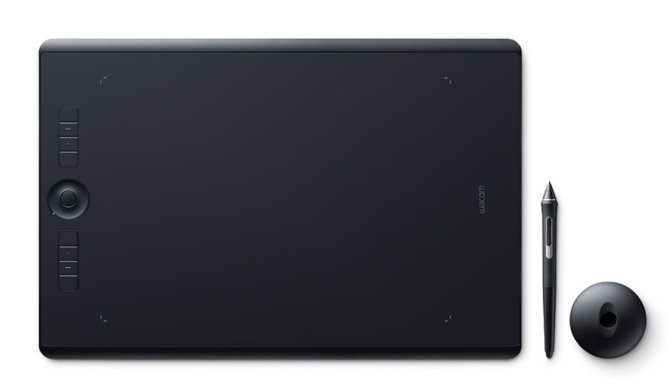
    Christchurch City Libraries have two Graphics Tablets available to use at Tūranga.

    Talk to our team members if you’d like to borrow one while you are visiting Auahatanga | Creativity, Level 4.
    The Graphics Tablet can be borrowed for up to 2 hours for in-library use only.

    A Graphics Tablet (also known as a pen or drawing tablet) is a device that enables a user to hand-draw images, animations and graphics, with a special pen-like stylus. Our Wacom Intuos Pro Creative Pen tablets can be connected to computers in our Creative Space to use with creative software such as Adobe Photoshop or Affinity Photo.


    Software available in Computer Lab 1, 4.22 Auahatanga | Creativity, Level 4, Tūranga.

    Your library membership gives you access to LinkedIn Learning which has tutorials on some of the following software.

    In addition to the software available on all public computers the following software is installed on PCs in Computer Lab 1:

    Animation, Effects and 3D Modelling

    • Adobe Animate 2D Animation.
    • Adobe Character Animator 2D animation with camera based motion capture and audio. Capable of live animation of characters.
    • Adobe After Effects (including Cinema 4D Lite) Layer-based digital effects, compositing and motion graphics.
    • Blender 3D modelling, animation and compositing.
    • Da Vinci Resolve Fusion (packaged with DaVinci Resolve) Node-based digital effects, compositing and motion graphics.
    • FreeCAD Parametric 3D modeller. 

    Audio Recording and Editing

    Desktop Publishing and Graphic Design

    Video Editing

    Games

    • Kerbal Space Program: Physics-based aerospace simulator and planetary exploration sandbox, including craft construction and robotic parts.
    • Simple Planes: Plane building and flying with procedural parts.
    • Simple Rockets 2: Rocket building and launching with procedural parts.
    • Universe Sandbox: Physics-based space simulator

    Other

    Software available on the computers (Macs Studios) in the Audio/Video Studio at Tūranga, Auahatanga - Creative Space at Te Hāpua: Halswell Centre, and Auahatanga - Creative Space at Matatiki Hornby Centre.

    Your library membership gives you access to LinkedIn Learning which has tutorials on some of the following software.

    Animation, effects and 3D modelling

    • Adobe Animate 2D Animation
    • Adobe Character Animator 2D animation with camera based motion capture and audio. Capable of live animation of characters.
    • Adobe After Effects (including Cinema 4D Lite) Layer-based digital effects, compositing and motion graphics.
    • Blender 3D modelling, animation and compositing.
    • Da Vinci Resolve Fusion (packaged with DaVinci Resolve) Node-based digital effects, compositing and motion graphics.

    Audio Recording and Editing

    Desktop Publishing and Graphic Design

    Video Editing

    Other

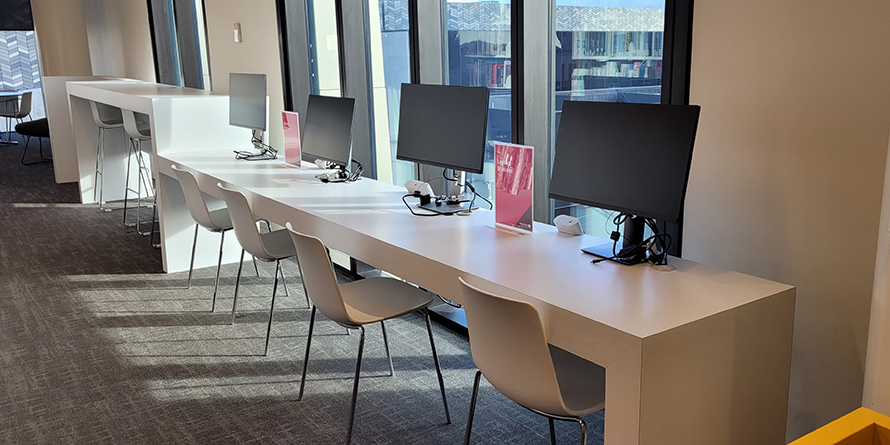
    Public use library computers have the following software installed:

    Windows

    • Windows Accessibility tools including Magnifier: Microsoft screen magnifying software, and Narrator: Microsoft light-duty screen reader utility.
    • Pharos Account Balance: View the balance on Pharos account, required for printing & copying.
    • Māori keyboard and dictionary
    • Multiple keyboard languages supported

    Web Browsers

    • Microsoft Edge: Web browser
    • Firefox: Web browser
    • Google Chrome: Web browser

    Office

    • Microsoft Office: Suite of programmes including word processor, slideshow, spreadsheet and more. (Word, Excel, PowerPoint and OneNote).

    From September 2025 library computers will not have Microsoft Publisher installed. Microsoft is discontinuing this application. See Scribus instead.

    • Scribus: Desktop publishing application that can import Microsoft Publisher files.

    Other programs include

    • Audacity: Audio editing software.
    • Inkscape: Drawing programme
    • iTunes: Music library software.
    • Media Player: for audio and video files
    • Microsoft Clipchamp: free video editing tool, requires a personal Microsoft account login
    • Notepad++: Text tool
    • Paint.net: Drawing programme
    • PDF-Xchange: Open, read, create & edit PDF files
    • VLC: Multi-format video player.

    Learning Centre computers

    The following software applications are used during Learning Centre programmes (i.e. available during organised classes and creative drop-in sessions).

    • Affinity Designer: vector graphics editor Adobe Illustrator alternative
    • Affinity Photo: raster graphics editor Adobe Photoshop alternative
    • Affinity Publisher: desktop publishing application Adobe InDesign alternative
    • Arduino IDE: coding for Arduino boards
    • Blender: 3D computer graphics
    • Krita – digital painting
    • League of Legends – eSports  
    • Minecraft Education Edition
    • OBS Studio: Desktop video recording and live streaming software
    • PrusaSlicer: 3D printing design
    • Silhouette: crafting tool
    • Vital: Create your own custom sounds with Vital, a digital synthesizer.

    See also:

  • Printing & copying

    Money can be loaded onto your Pharos account by:

    • Adding credit on a self-service kiosk at the library (EFTPOS)
    • Visiting a customer service desk at the library
    • Phoning the library.

    Library members can create their own accounts at a Pharos station in any library or contact a librarian to help you through the process.

    A Pharos account is automatically created using your library card number and password / PIN. If you don’t have a password or PIN please ask a librarian to set one up for you.

    If you are not a library member please ask library staff to create a visitor account for you. Visitor accounts are only valid on the date of issue.

    Please note: all customers are responsible for the management of their Pharos account. For security reasons, Christchurch City Libraries discourages the sharing of accounts.

    Pharos is an automated computer queuing system that also provides the means for you to pay for printing, photocopying, booking library computer time and other library services and products from your Pharos account. This system ensures everyone has equal access to computers at our libraries.

    Most of our libraries have Pharos. The exceptions are Diamond Harbour, Little River and the Mobile libraries.

    The Create PDF feature allows you to generate a printable PDF document of events you are interested in. 

    Creating a PDF

    Create PDF is accessed from the Options drop-down menu, displayed on the Events page bar.

    A PDF document can include up to 200 events. If more than 200 events are on display on the Events page, you are given the option to continue with the first 200 events.

    Alternatively you can refine the events to be included in the PDF by applying filters, or by searching.

    PDF Layout and Metadata

    Events are organized by date and arranged from left to right.

    Each event includes the following metadata:

    • Event title
    • Start and end time
    • Location
    • Description (limited to 250 characters)
    • Registration status
    • Taxonomies

    Yes. Find out how in our page on maker spaces and 3D printing. The cost for a 3D print is 20 cents per gram of filament. 

    Use our 3D printing form to submit an .stl file for printing.

    Yes, all our libraries have photocopier/scanners except the Mobile library.

    All the Pharos printer/copiers do colour and double-sided (duplex) printing and scanning.  Slides (or other types of transparencies) cannot be scanned using our libraries photocopier/scanner. In order to save your scanned file you will need either a USB memory device or an email address to send the scan file to. USB flash drives are available for sale at our libraries.

    There is no charge for scanning but if you wish to print a copy you will need a Pharos account to pay for your printing.

    See our charges page for copying / printing costs.

    Download Printer Copier help [348KB PDF]

    Flatbed scanner to digitize your photos or slides

    A photo scanner is a device that scans media and creates a high quality digital file. Our Epson Perfection V600 Photo Scanner can scan a variety of physical media formats to digital files. Find out more about accessing a scanner

    Please note: all scanning and printing is subject to copyright. It is your responsibility to ensure that your copying is legal.

    Newspapers viewed on microfilm or microfiche can be printed. For other items a photographic service is available.

    • Photographs of articles or illustrations from bound volumes of newspapers (which cannot be photocopied) may be ordered.
    • Payment is required in advance.
    • Reproducing some images may be restricted by copyright law.
    • Negatives are not available for sale.
    • Images can be supplied in a digital format.

    Contact us to request this service.

    Yes. Christchurch City Libraries provides a mobile printing service. All Christchurch City Libraries (except Diamond Harbour and Little River) support Mobile Printing. The Mobile Library bus does not provide a public printing or mobile printing service.

    Visit the Mobile Print Website

    Prerequisites

    Process

    Printing from your own device is a two-step process. First you need to upload or email the document. Second you need to release the document from a public printer.

    Upload to Print

    • Log on to the Mobile Print website using your library card or visitor pass and PIN
    • From the Job List tab select Upload
    • Browse and select the document you wish to upload
    • Click the Refresh button to update the Job List screen
    • Once the document is successfully uploaded you have the ability to change print options
    • Your document is now ready to be released from a public printer

    See Top Tips for Mobile Printing

    Email to Print instructions

    1. Email the document you wish to print as an attachment to printbw@ccc.govt.nz.
    2. You may receive a reply email with the subject line “please complete your email registration” - click on the link in the email in order to complete this process.
    3. Wait for an email confirmation that the job has been successfully received.
    4. Send one email per attachment.
    5. You can modify some printing options by logging into our Mobile Print Website.
    6. When you visit a Christchurch City Libraries branch (except Diamond Harbour, Little River or the Mobile Library bus) you need to log on to the public printer to release your print job(s).
    7. If you do not release your printing on the day you send it or upload it be aware it is automatically deleted at midnight (visitor account) or after 24 hours (library member account).

    Next step - visit a Christchurch City Libraries branch (except Diamond Harbour, Little River or the Mobile Library bus) and log on to the public printer to release your printing.

    See also Top Tips for Mobile Printing.

    Default print options for Email to Print

    Documents emailed to printbw@ccc.govt.nz will have the following attributes

    • Black and White
    • Double-sided

    To change print options you can either log into our Mobile Print Website OR use one of the email addresses listed below to set the following:

    Documents emailed to printbw1@ccc.govt.nz

    • Black and White
    • Single-sided

    Documents emailed to printcl@ccc.govt.nz

    • Colour
    • Double-sided

    Documents emailed to printcl1@ccc.govt.nz

    • Colour
    • Single-sided

    Top Tips for using the Mobile Print Website

    • The Mobile Print website displays your documents that are ready to print, including any printing you have done from public computers which have not been released yet.
    • You can modify some printing options via the Mobile Print website on documents that have been uploaded or sent by email only.
    • Documents not released are automatically deleted at midnight (Visitor printing) or after 24 hours (Library members).
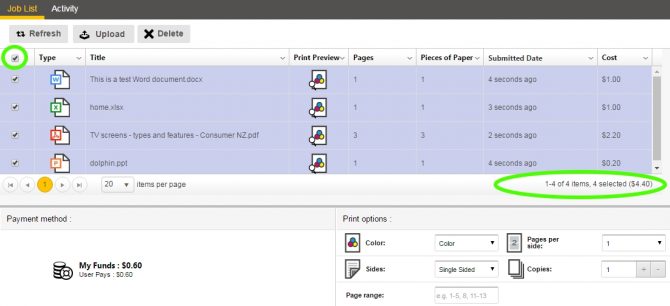
    • You can use the Job List to identify the cost of individual print jobs, multiple print jobs or you can select all documents to tally the total cost of printing.
    • You can also view your Pharos account balance from the Mobile Print website under Payment Method.
    • The Mobile Print website is no longer compatible with Internet Explorer 11 or older.

    How to change print options in Mobile Print

    1. Log on to the Christchurch City Libraries Mobile Print Website using your library card or visitor pass and PIN.
    2. In the Job List view tick the box next to document you wish to change
    3. Under Print options you can now make changes to the following:
      • Colour or Black and White
      • Single Sided or Double Sided
      • Pages per side
      • Copies
      • Page range - when you release the document it is deleted from your Job List queue. You would need to upload or send the document again to print additional pages of the same document.

    Supported Document Types

    Christchurch City Libraries Mobile Printing service currently supports these file types

    • Microsoft Word
    • Microsoft Excel
    • Microsoft PowerPoint
    • Microsoft Publisher
    • Microsoft Visio
    • Adobe Portable Document Format (PDF)
    • Text (CSV, RTF & TXT)
    • Images (JPG, TIFF, GIF, BMP)
    • Open Office 4.0 or greater documents

    Mobile Printing Apps

    Install

    Search for Pharos Print at the Apple App Store or Google Play Store.

    Settings

    Server Address: print.christchurchcitylibraries.com
    Port: 443

    Contactless printing using QR Code

    From within the Pharos App, scan the QR code located at your library’s public printer to release your printing.

    QR feature is available on:

    • Apple iOS - 13.0 and up
    • Android - 4.0.3 and up

    Printing webpages onto A4 sheets of paper can be problematic unless the website designer has taken steps to make it work for you. Try these steps first:

    1. Look for a Print View link on the web page itself  (n.b. may be a printer icon);
    2. Use your web browser’s Print Preview menu to see how it will print and then adjust your print settings as necessary.

    Adjusting your print settings

    You can adjust how a page will print by using your web browser's Print menu options.

    Page orientation

    Changing the page orientation from portrait (the normal default) to landscape may fix the problem if the right hand side of the page is being cut off. Change the page orientation in the following places:

    Internet Explorer; Firefox
    Print > Page Setup
    Chrome
    Print (all options are available in the main print menu)
    Opera
    Print > Print Options

    Print fewer pages

    Some web pages can be very long and may take several A4 pages to print out, however you may find that you don’t need all of them, especially if there are large footers etc. Only printing what you really want saves paper, power and money.

    To select which pages you want to print use the options in the Print dialogue.

    Double-sided printing

    To save paper print on both sides of the page.

    Internet Explorer, Opera
    Print > Preferences > 2 Sided Print
    Firefox
    Print > Properties > 2 Sided Print
    Chrome
    Print (all options are available in the main print menu)

    Once you have sent your print job(s) to the printer they enter a queue and will not be printed until your arrive at the printer to 'release' them. You may wish to 'lock' your computer before leaving it to print your items: press 'Windows + L' to lock the PC.

    • If someone is using the printer to photocopy just wait, when they are finished you will be able to select your items and print them.
    • If you change your mind about printing a particular item after submitting it you can delete it.
    • Items not printed will simply be cleared after 24 hour hours and you will not be charged for them.

    Yes. Printing from microfilm and microfiche readers is available on Tuakiri | Identity, Level 2, Tūranga. 

    Yes, all our libraries have printing, photocopying and scanning except the Mobile libraries.

    All the Pharos printer/copiers do colour and double-sided (duplex) printing and scanning. The public printer-copier touch panel can be adjusted to tilt forward or back depending on your requirements. The public printer-copier has a Scan to USB function.

    You will need a Pharos account to login to access the print, copy or scan functions. You will need credit on your Pharos account before you can copy or release your printing. You can top up at a customer service desk or self-service kiosk at the library

    Printing from your own device is available via Mobile Printing. Read the Mobile Printing FAQ.

    See our charges page for copying / printing costs. Scanning to Email or USB is free.

    Please note: all copying and printing is subject to copyright. It is your responsibility to ensure that your copying is legal.

    Download Printer Copier help [348KB PDF]

  • Services

    Money can be loaded onto your Pharos account by:

    • Adding credit on a self-service kiosk at the library (EFTPOS)
    • Visiting a customer service desk at the library
    • Phoning the library.

    Here are a few things you need to know about your account.

    • There is no minimum amount of money that you can put in your account.
    • The maximum amount you can load at a time is $30.
    • You cannot get refunds of un-used money.
    • You cannot transfer money from one account to another.
    • Your account will not expire unless it is a visitor account which is only valid on the date of issue.

    There is no charge for booking and using a library computer. Pharos is used for managing the booking and for payments for printing and copying.

    If a public computer is available, you can walk up and log in using your library card or a visitor slip. If all the computers are in use then you can log into a Pharos Station to reserve the next available computer. You can ask a staff member to help you make a booking.

    For library members, there is no limit to the number of sessions you can have if computers remain available. Visitor slips are available to non-members and allow a maximum of 30 minutes a day computer use.

    Computer sessions are for a maximum of 60 minutes for library members and 30 minutes for visitors. Some libraries have shorter session time options available. 

    When you reserve a computer

    • If you are more than five (5) minutes late for your session the computer becomes available for other customers.
    • When your computer is available, your library card number will be displayed on the screen of that computer.
    • Some locations will also have a queue screen showing you this information. You should check it to see when a computer is ready for you.

    Warnings when your time is nearly done

    While you are using the public computer, you will be given warnings when you have a short amount of time left:

    • Ten minutes to go
    • Two minutes to go.

    If you are a library member, your computer session may automatically extend if no-one else is waiting to use the public computers. If the computers get busy, you will receive a two minute warning before your extended session ends.

    Save your work

    You must save your work before your session expires, or else it will be lost. Save online or to USB memory drives which are available to purchase at the library.

    You will need a Pharos account to add yourself to the queue for a library computer. Once you have an account you can add yourself to the queue at a Pharos station in the library.

    • You can only be on the queue for a computer at the library you are in. You may not add yourself to the queue at one library for another library.
    • You may not add yourself to the queue in advance.
    • You will have to complete your first queued session before you can add yourself to the queue again.

    There is no charge for adding yourself to the queue and using a library computer - Pharos is just used for managing the queue and for payments for printing/copying.

    Pharos queues at Tūranga

    Because Tūranga has public computers available over five floors Pharos queues will work in the following way -

    • You can log on to a Computer Reservation Station located on floors 1, 2, 3 or 4 with a Library Card or Visitor Pass to reserve a Free Internet computer.
    • Pharos will reserve a computer on the floor you are on when making the reservation if one is currently available. If all the computers on your floor are in use then the system will find the next available computer on another floor.

    He Hononga | Connection, Ground Level does not have computers that can be reserved as they are walk-up and may be used for a maximum of 15 minutes only.

    Pharos is an automated computer queuing system that also provides the means for you to pay for printing, photocopying, booking library computer time and other library services and products from your Pharos account. This system ensures everyone has equal access to computers at our libraries.

    Most of our libraries have Pharos. The exceptions are Diamond Harbour, Little River and the Mobile libraries.

    NZ Post postal services are available at the following libraries and customer service hubs:

    Fendalton Library and Customer Service Hub

    NZ Post services are available from Fendalton Customer Service Hub, Monday to Friday 9am to 5pm.
    You can:

    • Post a parcel/drop off
    • Purchase postage
    • Post a letter

    More information on the NZ Post website.

    Linwood Library and Customer Service Hub

    NZ Post services are available from the Linwood Customer Service Hub, Monday to Friday 9am to 5pm.
    You can

    • Post a parcel/drop off
    • Purchase postage
    • Pay a Bill & ID Applications
    • Post a letter

    More information on the NZ Post website.

    Little River Library and Customer Service Hub

    NZ Post services are available from the Little River Library and Customer Service Hub, Monday to Friday 8.30am to 4.30pm.
    You can

    • Post a parcel/drop off
    • Purchase postage
    • Counter delivery
    • Post a letter

    More information on the NZ Post website.

    Papanui Library and Customer Service Hub

    NZ Post services are available from the Papanui Customer Service Hub, Monday to Friday 9am to 5pm.
    You can:

    • Post a parcel/drop off
    • Purchase postage
    • Pay a Bill & ID Applications
    • Post a letter

    More information on the NZ Post website.

    Shirley Library and Customer Service Hub

    NZ Post services are available from the Shirley Customer Service Hub, Monday to Friday 9am to 5pm.
    You can:

    • Post a parcel/drop off
    • Purchase postage
    • Pay a Bill & ID Applications
    • Post a letter

    More information on the NZ Post website.

    AED (Automated External Defibrillators) deliver a short, powerful electric shock to the heart, helping the heart to regain its natural rhythm. AED are available at the following libraries:

    AED locations in New Zealand

    The following libraries have Customer Service Hubs where you can carry out Council-related transactions.

    See all Customer Service Hubs

    A Metrocard enables you to pay for bus travel in Christchurch. You can buy or top up a Metrocard at some of our libraries:

    Te Hāpua: Halswell Centre: available at the Customer Service Hub, Monday to Friday 9am to 5pm

    Linwood Library: available at the Customer Service Hub, Monday to Friday 9am to 5pm
    and from library staff at other times during library opening hours

    Lyttelton Library: available from library staff during library opening hours

    Matatiki Hornby Centre: available at the Customer Service Hub, Monday to Friday 5.30am to 9.30pm, Saturday and Sunday 7am to 8pm

    New Brighton Library: available from library staff during library opening hours

    Papanui Library: available at the Customer Service Hub, 9am to 5pm Monday to Friday

    Shirley Library: available at the Customer Service Hub, 9am to 5pm Monday to Friday, and from library staff on Saturday and Sunday during library opening hours

    Spreydon Library: available from library staff during library opening hours

    Upper Riccarton Library: available from library staff during library opening hours

    More about Metrocards

    Replacements for lost or damaged cards are only available from the MetroInfo Counter at the Bus Interchange.